Home » How to Connect Your Domain to Shopify in Just a Few Minutes
| Connecting a custom domain to your Shopify store boosts professionalism, trust, and brand identity. With just a few simple steps, buying a domain, updating DNS records, and enabling SSL, you can set up a secure and memorable online store. |
Your domain name is your online store’s identity. It’s what people type into their browser to find you.
If you’re building your store on Shopify, you get two options: use the free default domain or connect a custom domain that matches your brand name.
But before you start sharing your website, there’s one important step. It is connecting your custom domain. This is what makes your store look professional, builds trust with customers, and gives your brand a strong identity online.
Want to learn how to connect your domain to Shopify? Let’s explore the entire process in a simple and easy-to-follow way.
How to Connect Your Domain to Shopify
When you sign up for Shopify, your store gets a default domain like yourbrand.myshopify.com. While this works for internal testing, it doesn’t look very professional to customers, and it’s a bit long for customers to remember.
To ensure a professional appeal, the domain name should not be more than 15 characters. That’s where a custom domain helps.
A custom domain gives your brand credibility and makes your site easier to remember. Here’s how to connect your domain to Shopify:
Buy a Custom Domain
Before you can connect a domain, you need to own one. You can buy a domain from a domain registrar.
- Visit a domain registrar website.
- Search for your brand name or desired domain.
- Pick a domain extension (.com, .store, .shop, etc.).
- Complete the payment.
- Once you purchase the domain, you’ll get access to its DNS settings, which is where you need to make the required changes later.
| Pro Tip: Use the AI domain name generator to get ideas and find the perfect domain name for your website. |
Log in to Your Shopify Store
Head over to Shopify and log in to your store account. From the Shopify admin dashboard, click on the Settings option at the bottom left. Then choose Domains from the settings menu. This is where you’ll manage all things related to your website address.
Choose “Connect Existing Domain
In the Domains section, you’ll see a few options:
- Buy a new domain
- Connect the existing domain
Click Connect existing domain. This is the option you need when you’ve already bought a domain from another platform.
Enter Your Domain Name
Type your domain name in the space provided, and click Next. Shopify will now check if the domain name is available.
| Also Read: Why You Need a Custom Domain for Shopify & How to Get One |
Update DNS Settings on Your Domain Registrar
You will get DNS settings from your domain registrar, which you’ll need to update so your domain points to Shopify’s servers. Log in to your registrar’s dashboard and look for DNS settings.
Then update these two records:
- A Record: Point it to Shopify’s IP address
- CNAME Record: Point it to yourstorename.myshopify.com. Replace with your actual Shopify store name
Each registrar’s procedure is different, so check their help docs or contact support if you need assistance.
Wait for Shopify to Verify Your Domain
Once you’ve updated the DNS records, go back to the Shopify admin. Shopify will start verifying your domain connection.
This usually takes a few minutes, but in some cases, it can take up a few hours, as per the DNS propagation.
Set Up Your Primary Domain
Once your custom domain is verified, you can make it your primary domain.
This step is important because it tells Shopify which domain you want your customers to see.
Test Your Domain
After you’ve connected and set your custom domain as the primary one in Shopify, test it to make sure your store loads correctly. If anything doesn’t work as expected, address the issues to ensure that your online store runs smoothly.
Enable SSL for Security
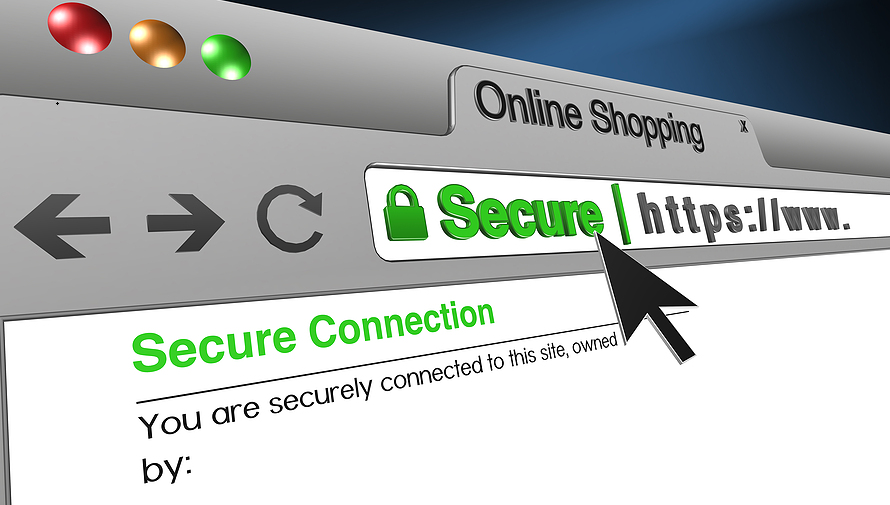
SSL (Secure Sockets Layer) protects your customers’ data and gives your website the secure “https” prefix and a lock icon in the browser.
Common Problems You Might Face
- Incorrect A Record: Must point to Shopify’s IP. Even a small error will break your site.
- CNAME for ‘www‘: Should point to shops.myshopify.com to ensure the domain works with “www”.
- AAAA Record (IPv6): Optional but recommended if supported by your registrar; check for correct configuration. It should point to Shopify’s IPv6 address.
- DNS Propagation Delay: Changes may take up to 48 hours to reflect. You can use online tools to monitor the status.
- Domain Registration: Your domain must be active and registered before connecting to Shopify.
- Domain Locked: Unlock it temporarily from your registrar to make DNS changes.
- Domain Ownership verification: Shopify may require DNS or email-based verification.
- Already Connected Domain: A domain can only be linked to one Shopify store at a time.
- Backup DNS Settings: Always save the current settings before making edits.
- SSL Certificate: Shopify offers a free SSL certificate. Make sure it’s active for secure (https) connections.
| Also Read: What is SSL Certificate and What are its Benefits |
Conclusion
Your domain is your brand’s online identity. Learning how to connect your domain to Shopify properly makes your store look professional and credible. It may seem technical at first, but once you follow the steps, buy a domain, update DNS records, verify in Shopify, and enable SSL, your website will be up and running in no time.
BigRock helps you create your custom domain name seamlessly. With 24/7 support and expert recommendations, BigRock helps you register a domain name and create a website seamlessly.