| The ERR_CONNECTION_RESET pops up when your browser can’t keep a steady link to a website’s server, and the connection just drops. It’s often tied to network hiccups, dodgy browser settings, or server glitches that stop data from flowing properly. |
Have you ever tried to visit a website, only to be met with the frustrating “ERR_CONNECTION_RESET” message?
This error simply means that something is interrupting the connection between your device and the website. The cause could be anything from a weak Wi-Fi signal to a misbehaving browser or even an issue on the website’s server.
Fortunately, this problem can usually be fixed with a few simple steps.
This guide will provide practical tips on how to fix ERR_CONNECTION_RESET and get you back online. Ready to play detective? Let’s go!
Reasons Behind ERR_CONNECTION_RESET
Think of the ERR_CONNECTION_RESET error like a phone call that keeps dropping mid-conversation—something is disrupting the communication between your device and the website. Here are a few common reasons this might be happening:
- Unstable internet connection, such as an inconsistent or weak Wi-Fi signal.
- Browser-related issues, including outdated cache or corrupted data.
- A strict firewall or antivirus software may block the connection.
- Server-side problems, where the website’s hosting service is experiencing difficulties.
- Misconfigured network settings, such as incorrect or malfunctioning proxy settings.
Figuring out the concern will help you determine how to fix ERR_CONNECTION_RESET.
Fixing ERR_CONNECTION_RESET: 7 Methods
Here’s a detailed guide to fix ERR_CONNECTION_RESET:
Method 1: Start with Your Internet
Start by checking whether your internet connection is functioning properly. A weak or unstable connection is often the underlying cause of the ERR_CONNECTION_RESET error.
To troubleshoot:
-
Restart your router by unplugging it, waiting for about 30 seconds, and then plugging it back in.
-
Try connecting to a different network, such as your mobile hotspot, to see if the website loads.
-
Visit other websites—if sites like BBC or Google load without issue, the problem is likely specific to the website you’re trying to access.
Method 2: Clear Out Browser Cache History
Browsers store cached files to help websites load more quickly, but over time, these files can become outdated or corrupted, leading to connection issues such as ERR_CONNECTION_RESET.
To clear the cache in Google Chrome:
-
Go to Settings, then select Privacy and Security, and click on Clear Browsing Data.
-
Check the box for Cached images and files, then click Clear Data.
-
Next, close and reopen your browser, then try accessing the website again.
Method 3: Temporarily Adjust Your Firewall or Antivirus Settings
At times, security software can be overly cautious and block legitimate connections, resulting in errors like ERR_CONNECTION_RESET. To find out the reason, try the following:
-
Temporarily disable your antivirus software. Be sure to re-enable it after testing.
-
Turn off your firewall briefly through Windows Security settings.
-
Once disabled, attempt to reload the website to see if the issue persists.
| Pro Tip: If the site loads successfully, reconfigure your security software to allow the connection. |
Method 4: Clear Your DNS Cache
Your computer stores a local cache of DNS (Domain Name System) records to help websites load more quickly. However, if this cache becomes outdated or corrupted, it can lead to connection errors such as ERR_CONNECTION_RESET. To clear the DNS cache:
-
Open the Command Prompt by searching for “cmd” in the Windows search bar.
-
Type the command: ipconfig /flushdns and press Enter.
-
Once you see a confirmation message indicating the DNS cache has been successfully cleared, try accessing the website again.
This method can be an effective solution when DNS-related issues are causing the error.
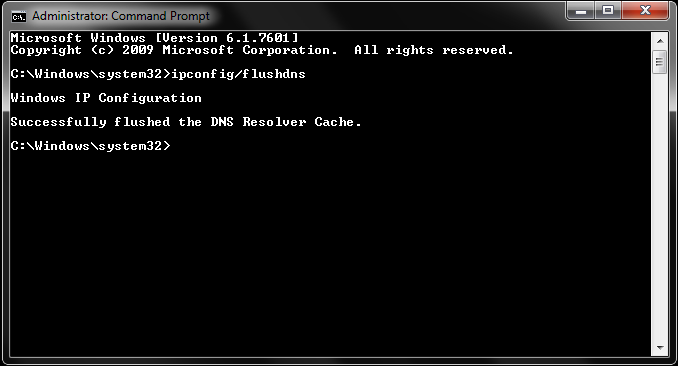 Alt Text: Command Prompt running ipconfig /flushdns to troubleshoot ERR_CONNECTION_RESET issues.
| Also Read: DNS Flushing: Reasons to Flush DNS Cache Periodically |
Method 5: Review Proxy and VPN Settings
If you are using a proxy or VPN, these tools, while beneficial for privacy and security, can sometimes interfere with your internet connection and trigger errors like ERR_CONNECTION_RESET. To check your settings:
-
In Google Chrome, navigate to Settings > System, then click Open your computer’s proxy settings.
-
Ensure the proxy setting is set to “No proxy” unless you intentionally use one.
-
If you are connected to a VPN, temporarily disable it or switch to a different server.
| Pro Tip: While VPNs are useful for maintaining privacy, an unstable or misconfigured server may disrupt your connection. So, disable the VPN for some time to understand if it is the source of the issue. |
Method 6: Check for Updates in Your Browser
An outdated browser can hinder your ability to access modern websites, much like an old map that no longer reflects current routes. To ensure compatibility with the latest web standards, it is important to keep your browser up to date.
Here’s how to check for updates in Google Chrome:
-
Click the three dots in the upper-right corner, select Help, then click About Google Chrome.
-
Chrome will automatically search for available updates and install any it finds.
-
After the update is complete, restart the browser and try accessing the site again.
| Pro Tip: If the problem persists, look for server-side issues. |
Method 7: Contact Your Hosting Provider
If your own website is showing the ERR_CONNECTION_RESET error, the problem might be coming from the server side. It could be something like an overloaded server, a misconfiguration, or another hosting-related issue.
While it can definitely be frustrating, it’s easy to fix. Simply, reach out to your hosting provider’s support team to figure out what’s going on and get things back on track.
Wrapping It Up
No one enjoys encountering the ERR_CONNECTION_RESET error—it’s like the internet’s way of refusing to cooperate. However, by following a few straightforward steps, from rebooting your router to checking your browser, you can usually resolve the issue.
If the problem lies with your website, a reliable hosting provider like BigRock can help get things back on track. Want to ensure your site stays online without a hitch? Explore BigRock’s hosting solutions and take control of your web presence today.