| This guide walks BigRock users through setting up their email clients like Outlook, Apple Mail, and mobile devices. It covers essential settings, step-by-step configuration, and troubleshooting tips. Proper setup ensures secure, efficient, and synchronized email communication. |
Setting up your email correctly can save hours of hassle later. You’re already halfway there if you’ve purchased your domain and email hosting from BigRock. So now the next step is a seamless email client setup, allowing you to send and receive emails in your favorite email client (Outlook, Apple Mail, and any other email client on the market).
In this guide, you will learn how to correctly and easily set up your email client. Let’s start.
What Is an Email Client?
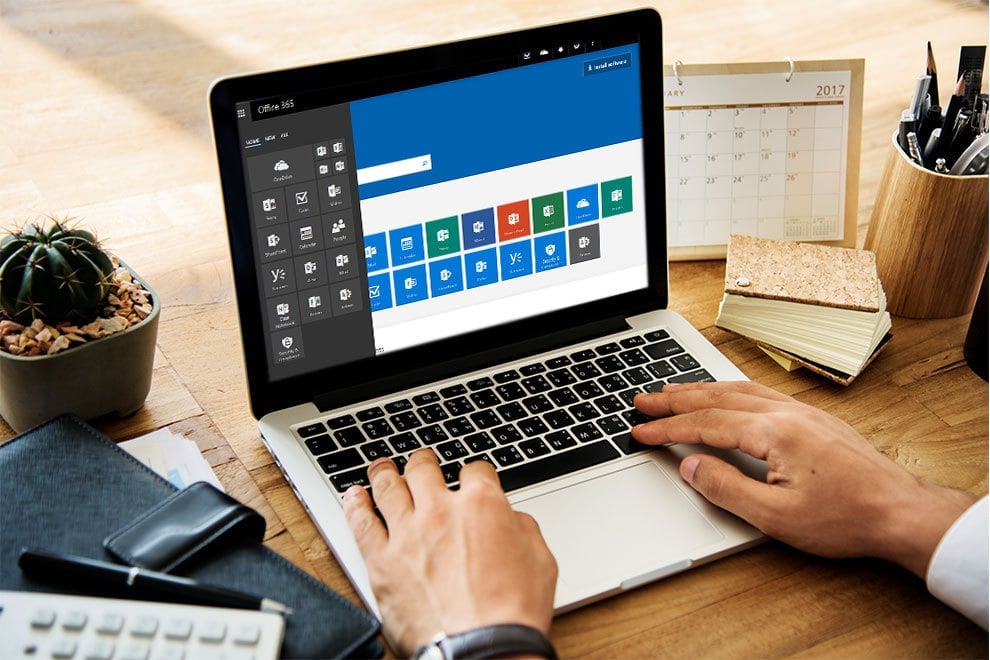
An email client is a piece of software (or app) that lets you manage your email directly from your computer or smartphone, without having to go to a web browser.
The main features of an email client:
- Connects to your mail server (with support for IMAP, POP3, SMTP)
- Stores emails offline or streams from the server
- Provides access to offline messages
- Multiple email addresses in one interface
- Provides organisation features such as folders, filters and labels
A few examples include Microsoft Outlook, Apple Mail, Mozilla Thunderbird, Windows Mail, Gmail or Apple’s Mail app.
Why Email Client Setup Matters?
Using an email client simplifies your workflow. Instead of logging into webmail every time, a configured email client keeps everything synced, secure, and accessible. That means you spend less time toggling tabs and more time communicating effectively.
Additionally, a proper email client setup ensures:
- Faster access to emails
- Improved offline accessibility
- Better email organisation
- Multiple account support
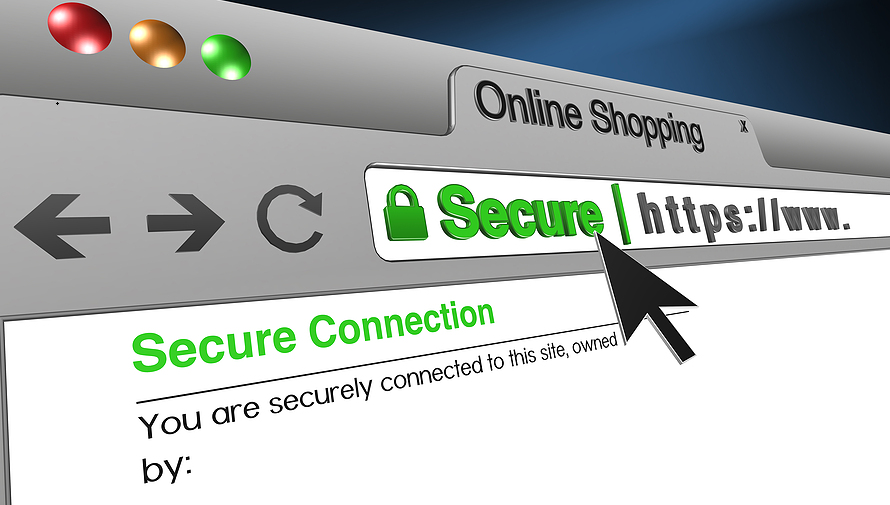
- Encrypted communication (SSL/TLS)
If you’re handling customer queries or business proposals, skipping this step isn’t an option.
Before You Begin: Collect Required Settings
To ensure a seamless email client setup, make sure you have the following info from your BigRock control panel:
- Username (your full email address)
- Password (you created this when setting up the email)
- Incoming Mail Server (IMAP/POP3): mail.yourdomain.com
- Outgoing Mail Server (SMTP): mail.yourdomain.com
- Port numbers and encryption type (usually SSL/TLS)
These details are in your BigRock hosting dashboard under “Email Accounts” → “Configuration Settings.”
Step-by-Step Email Client Setup for Outlook
If you’re using Microsoft Outlook, follow these steps:
- Open Outlook and go to File > Add Account.
- Choose Manual setup or additional server types.
- Select POP or IMAP.
- Enter your user information:
- Your Name: e.g., John Doe
- Email Address: [email protected]
- Enter Server Information:
- Account Type: IMAP (recommended)
- Incoming Mail Server: mail.yourdomain.com
- Outgoing Mail Server: mail.yourdomain.com
- Logon Information:
- Username: your full email address
- Password: (as configured in BigRock)
- Click More Settings:
- Go to the Outgoing Server tab. Check “My outgoing server requires authentication.”
- Under the Advanced tab:
- Incoming server (IMAP): 993 with SSL
- Outgoing server (SMTP): 465 with SSL
- Click Next, and Outlook will test your settings.
- Finish the setup and restart Outlook.
This completes your email client setup for Outlook.
Email Client Setup for Apple Mail (Mac Mail)
Apple users can follow these steps:
- Open the Mail app.
- Click Mail > Add Account.
- Choose Other Mail Account.
- Enter your email, name, and password.
- Set incoming and outgoing mail servers:
- Incoming: mail.yourdomain.com (IMAP, Port 993, SSL)
- Outgoing: mail.yourdomain.com (SMTP, Port 465, SSL)
- Save settings and test the connection.
That’s it! Your BigRock email is now ready on your Mac device.
Setting Up Email on Mobile Devices
Mobile email clients follow the same process, but the screen options vary slightly.
On Android:
- Go to Settings > Accounts > Add Account > Email.
- Enter your full email and password.
- Choose IMAP.
- Incoming server: mail.yourdomain.com, Port 993, SSL
- Outgoing server: mail.yourdomain.com, Port 465, SSL
- Save and sync.
On iPhone:
- Go to Settings > Mail > Accounts > Add Account.
- Choose Other > Add Mail Account.
- Enter your name, email, and password.
- Manually input incoming and outgoing servers.
- Enable SSL and save.
This completes the email client setup on your smartphone.
| Also Read: How to Install an SSL Certificate in Just a Few Clicks |
POP3 vs IMAP: What’s Right for You?
You’ll need to pick between POP3 and IMAP during email client setup.
- POP3 downloads emails to one device and deletes them from the server. It is great if you check email from one location only.
- IMAP keeps your email synced across multiple devices. It is ideal for professionals who switch between desktop and mobile often.
For most users, IMAP is the preferred choice.
Troubleshooting Common Email Client Setup Errors
Here are some issues users often face during email client setup:
- Authentication Error: Double-check your password or enable SMTP authentication.
- Port Error: Confirm the port numbers. Use 993 for IMAP and 465 for SMTP with SSL.
- Certificate Warnings: Use the exact mail server name as provided by BigRock (mail.yourdomain.com).
Security Tips for Your Email Setup
Protect your Account with these tips:
- Always use SSL/TLS encryption during setup.
- Enable two-factor authentication (2FA) if supported by your email client.
- Update your email client regularly to patch any vulnerabilities.
- Avoid accessing your email over public Wi-Fi without a VPN.
Securing your email client setup prevents phishing, data theft, and downtime.
Why BigRock Makes Email Setup Easier?
BigRock simplifies email configuration by offering pre-set configuration scripts, help docs, and 24/7 customer support. Easy access to your email settings and detailed instructions makes your email client setup process friction-free.
Whether you’re setting up for personal use or your entire company, BigRock’s reliable email hosting makes things easy.
| Also Read: General Information : Email Hosting |
Conclusion
Getting your email client setup right is essential to managing professional communication effectively. It reduces friction, prevents downtime, and ensures a secure connection to your business inbox.
Already have a domain with BigRock? Then, your email journey is about to get even smoother. Configure your email client today and maximize your email hosting service.
Explore BigRock’s knowledge base or contact their expert team for more guidance.