| A domain onboarding wizard streamlines website setup with guided DNS configuration, one-click hosting, email setup, and SSL auto-provision. It reduces errors, speeds up launches, and improves deliverability and security. With features like templates, auto-publishing, and re-runnability, it offers beginners and professionals a reliable, hassle-free path to getting online quickly. |
Launching a website should feel exciting, not intimidating. A domain onboarding wizard takes you from “I just bought a name” to “My site is live and secure” in a guided flow that covers DNS, hosting, email, and SSL. The need is massive: the internet now holds 368.4 million domain names.
If you’re registering your first domain or spinning up sites for clients, this walkthrough is for you.
Let’s learn a step-by-step process to navigate an express domain setup wizard that handles guided DNS, one-click hosting connection, email configuration, and SSL auto-provision.
Understanding the Domain Onboarding Wizard
A domain onboarding wizard is a re-runnable, interactive setup flow that automates DNS records, email routing, SSL certificates, and optional hosting connections. Modern wizards offer “express” and “advanced” modes, in-line validation, auto DNS publishing, and plain-language prompts, often called guided DNS.
The benefits are tangible: faster launch times, fewer record errors, improved email deliverability, enhanced security, and smoother client handoffs. In short, the domain setup wizard removes the guesswork so you can focus on content, not configuration.
| Also Read: How to Renew an SSL Certificate For Your Website |
Quick Express Path: What “Done In Minutes” Looks Like
The best wizards surface a one-screen checklist –
- Register or attach your domain
- Apply a DNS template or use auto DNS publish
- One-click hosting connect (optional)
- SSL auto-provision with DNS verification
- Email setup flow with a safe MX baseline
Power users can switch to advanced mode at any time.
Getting Ready: Pre-Steps Before Starting the Wizard
Keep these items handy to avoid roadblocks –
- Login details or invited access to your domain registrar
- Hosting account credentials if you plan to connect immediately (or pick “I’ll connect later”)
- The email service that will process mail for the domain
| Pro Tip: Use role-based invites instead of sharing passwords to stay secure. |
Step 1# Choose and register a domain
Quick Checklist for Selecting a Domain
- Keep it short and memorable.
- Pick a relevant extension (.com, .shop, .tech) that matches your brand.
- Avoid trademark conflicts and confusing spellings.
- Register close variations to protect your identity.
Step 2# Guided DNS: Make DNS Painless With Templates And Auto-Publish
Guided DNS is where most beginners hit friction. A smart wizard shields you from cryptic record tables and propagation myths.
Express vs. Advanced DNS Flows
- Express: Pick “WordPress,” “Static site,” or another preset. The wizard inserts the required A, CNAME, and MX records automatically.
- Advanced: Open the manual editor to tweak TTLs, add sub-domains, or view the full zone file.
DNS Templates and Guided Record Descriptions
Templates bundle the records you need with plain-language notes such as “This CNAME points ‘www’ to your host so your site loads everywhere.” Fewer choices lead to fewer mistakes.
Auto DNS Publishing & DNS API
When your registrar or DNS provider supports an API, auto DNS publish pushes records for you, handy for migrations, DKIM keys, and SSL verification. If API access isn’t available, the wizard shows precise copy-paste snippets.
Guided DNS UX Elements to Include
Progress tracker, in-line validation, record status checks, “publish now” button, and a rollback link give confidence at every step.
Where to Nudge Users: DNS Security and Deliverability
Once you add MX records, the wizard can auto-suggest an SPF record so outbound email lands in the inbox and not spam.
Step 3# One-Click Hosting Connect: Publish Your Site Fast
A site can’t load without DNS pointing to the hosting. One-click hosting connect the bridge that gap.
What One-Click Hosting Connect Does
It updates nameservers or A records automatically and can even trigger a WordPress install or create a default site placeholder.
Express Scenario vs. Manual
- Express – Choose a supported host, approve changes, and you’re done.
- Manual – The wizard shows the exact records to paste at your host if it isn’t integrated yet and provides a confirmation checklist.
Step 4# Email Setup Flow: Deliverability-First Guidance
Email missteps break communication, so the wizard treats mail routing as a first-class citizen.
Express Email Setup
The express path adds MX records and a minimal SPF entry. Clear warnings highlight that switching nameservers without porting MX can break mail.
Advanced Deliverability Steps
Add DKIM automatically when the DNS API is available. The wizard also suggests a DMARC starter policy (p=none) with plain-language notes about monitoring reports before enforcing stricter settings.
Email Safety Checks and Recovery Advice
An “Email safety check” alerts you if existing MX records differ, recommends a staged cut-over, and offers rollback guidance if mail stops.
Relevance to Freelancers
A completion summary exports current MX, DKIM, and DMARC settings so freelancers can hand documentation to clients with confidence.
Step 5# SSL Auto-Provision: Secure Your Site Without Certificate Headaches
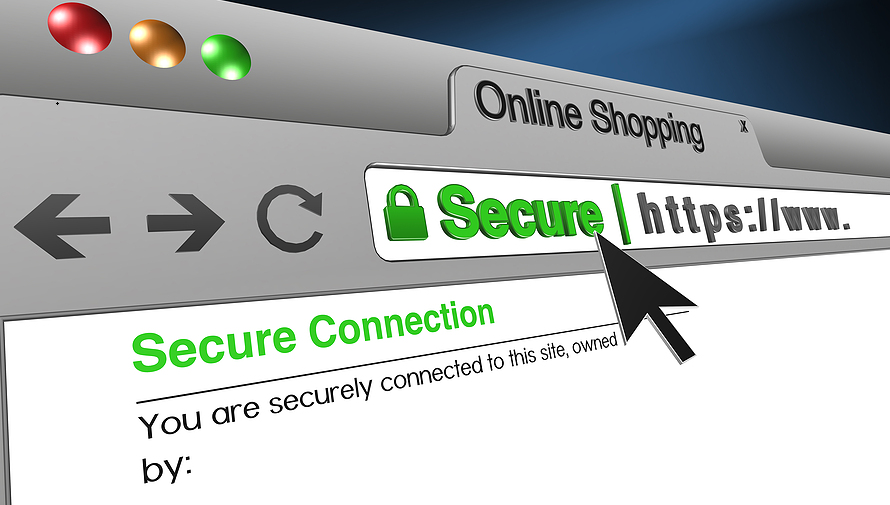
HTTPS is a must. SSL auto-provision issues and installs certificates with minimal effort.
How SSL Auto-Provision Works in the Wizard
If your DNS provider supports an API, the wizard verifies ownership via a DNS-based challenge and issues a Let’s Encrypt certificate before DNS even cuts over.
Fallbacks and Common Failure Modes
When API verification isn’t possible, the wizard provides a TXT record to paste manually and a re-check button. Troubleshooting steps cover cache delays and when to seek support.
Re-Runability, Roles, and Auditability
A good wizard isn’t a one-time ride: you may revisit it for branding tweaks or new email providers.
Key Features to Include
- Invite teammates with read-only or edit roles instead of sharing logins.
- Export a completion summary that shows every change.
- Re-run the express flow safely without duplicating records, and view rollback notes if something breaks.
These touches mean fewer support calls and smoother client handoffs.
Troubleshooting & Fallbacks: What to Do When Automation Can’t Run
- Use the manual copy-paste option for DNS records if auto-publish fails.
- Check whether your DNS provider is unsupported; contact support for alternatives.
- Compare record status versus DNS propagation delays before changing more settings.
- Never switch nameservers unless you’ve confirmed new MX records are live.
One Wizard, Endless Possibilities
A domain onboarding wizard streamlines setup by reducing errors, accelerating launch times, enhancing email deliverability, securing your site with SSL, and simplifying DNS management. Whether you’re a beginner or managing multiple client projects, the wizard ensures a smooth, guided experience from start to finish.
With BigRock, you get expert-backed domain onboarding that makes configuration effortless, reliable, and fast. Connect with us and let BigRock handle the complexity behind the scenes!